How to Agree Reporting Numbers With a Client Before They Disagree
Most reporting arguments with a client aren't about the number. They're about what the number was supposed to mean.
The client opens the monthly report, sees 54 leads, and their sales manager says they only got 31. Nobody is lying. The report counted form submissions from GA4, and the sales manager counted the people who picked up the phone. The two of you never wrote down which one "leads" meant, so the first time it matters, it turns into a dispute.
You can fix that before the first report goes out. It takes one page and about an hour with the client. Here's what I'd put on it.
Start with the decision, not the dashboard
Before you pick a single metric, ask the client what they'll decide with the report. Not "what do you want to see" but "what would you do differently if this number went up or down?"
The answers are usually short:
- Keep, raise or cut the ad budget.
- Move money between campaigns or channels.
- Tell the sales team to expect more or fewer calls.
- Decide whether the new landing page stays.
Each decision needs one number, at most two. A metric that doesn't feed a decision can stay in the appendix, or out of the report. That's also your answer the next time someone asks you to add a chart: which decision does it change?
Write a one-page metric definition sheet
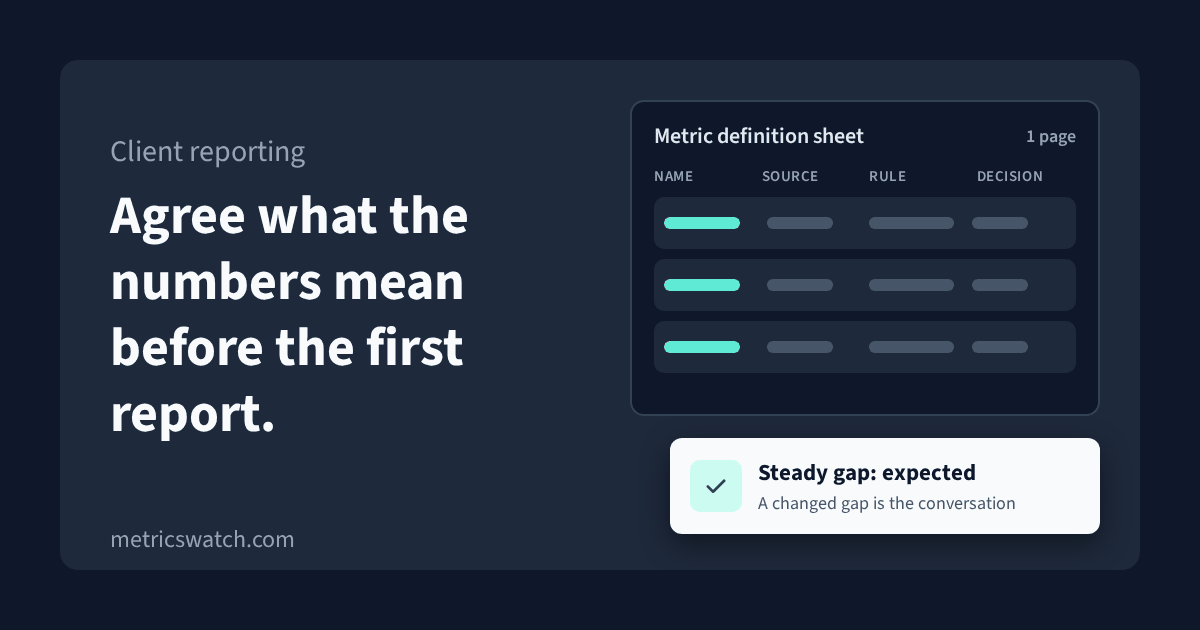
For every number that feeds a decision, write four things down: its name, the source of truth, the counting rule, and the decision it feeds. Agree it with the client, keep it with the report, and change it only on purpose.
Here's an example for a lead-gen client. The rows are illustrations; yours will depend on what the client tracks.
| Metric name | Source of truth | Counting rule | Decision it feeds |
|---|---|---|---|
| Leads | The client's CRM | New contacts created from the website form or a tracked call, one per person, test entries removed | Whether total marketing spend is paying off |
| Ad leads | Google Ads, Conversions column | The form-submit conversion, counted as "One" per ad click, dated to the ad, not the form | How to split budget between campaigns |
| Engaged visitors | GA4, Active users | People who engaged with the site, as GA4 defines it, not Total users | Whether content and SEO are bringing the right people in |
| Qualified leads | The client's CRM | Leads the sales team moved to a qualified stage within 30 days | Whether to keep, raise or cut the budget |
Name
Use the client's word, not the tool's. If they say "enquiries", call it enquiries. Then never use the same name for two different counts. "Leads" from the CRM and "leads" from Google Ads in the same report is how the argument starts.
Source of truth
Pick one tool per metric and name the exact report or column. For anything to do with money, I'd use the client's own system, usually the CRM, because it's what they already trust. The ad platform and GA4 still belong in the report, they just answer narrower questions, like which campaign or which page.
Counting rule
This is where most of the gaps hide, and every tool has its own settings:
- In GA4, a form submission only shows up as a result if the event is marked as a key event. Write down which event it is. Google's recommended event for this is
generate_lead, triggered when someone submits a form or a request for information. - In GA4, "Total users" and "Active users" are different numbers. Google defines Total users as everyone who visited in the date range, and Active users as the people who engaged with the site (user metrics). Name the one you use.
- In Google Ads, each conversion action counts either every conversion after a click or only one. Google says "One" is the better choice when you care whether a lead came in, not how many times the form was filled (counting options).
- Google Ads dates a conversion to the ad, not to the day the lead came in. Other tools use the conversion date (data discrepancies). A lead that clicked on the 29th and filled the form on the 3rd lands in different months in different tools.
Decision
One line per metric. If you can't write it, the metric probably doesn't belong in the main report.
Ready to streamline your reporting?
MetricsWatch pulls twelve sources into one white-label report, delivered on your schedule: Google Analytics, Google Ads, Google Search Console, Google Business Profile, Google Sheets, Microsoft Advertising, Facebook Ads, Facebook Pages, Instagram, LinkedIn Ads, LinkedIn Pages, and Mailchimp. Starts at $49/month. 14-day free trial, no credit card required.
Agree the cadence, and what counts as an exception
The report has a rhythm, and so does bad news. Agree both up front.
The report. Monthly works for most clients, with the same date range and the same send day each month. Don't report on the last day or two: GA4 says data processing can take 24 to 48 hours and the numbers can change in that time (data freshness). A report pulled on the 1st for a month that ended on the 31st can shift after it's sent.
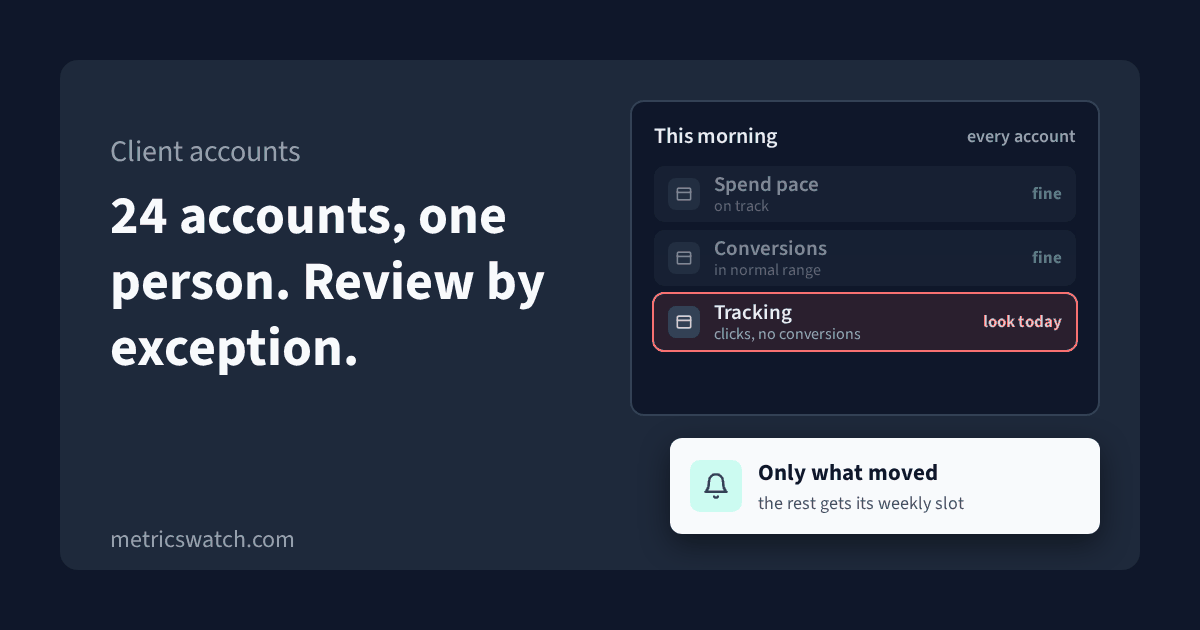
The exception. Agree in advance what's worth a message between reports, and who gets it. Write it as a rule, for example:
- Leads in any week are less than half the average of the previous four weeks.
- Ad spend is on track to go over the monthly budget.
- A key event records zero for a full day while traffic is normal.
The numbers in those rules are examples; pick ones that fit the account. Then agree the response: who you'll tell, how fast, and what you'll do before you tell them. A client who knows they'll hear about a real problem within a day is far less likely to go digging through dashboards on their own and find a number that doesn't match yours.
A steady gap is expected. A changed gap is the conversation.
Even with a clean definition sheet, the tools won't agree with each other. Google Ads, GA4 and the CRM count different things on different dates. If you want the mechanics, I wrote them up in why GA4, the store and Google Ads order counts don't match.
What matters for the client is the ratio. If Google Ads usually shows about 80% of the CRM's leads, write that on the sheet as the normal gap. Then:
- When the gap is steady, there's nothing to explain. Say so once, at the start, and point back to the sheet when it comes up.
- When the gap moves, something changed. That's the one worth raising before the client notices.
Keep a short change log next to the sheet: date, what changed, who changed it. Some settings change the past, and some only change the future. Google says changing the reporting attribution model in GA4 applies to historical and future data (attribution settings), while changing a Google Ads conversion window applies only to conversions from that day forward (conversion windows). If last quarter's numbers look different this month, the log is how you explain it in one line.
A client-ready monthly report agenda
Run the report, or the call that goes with it, in the same order every month:
- Last month's decision. What you agreed to do, and what happened.
- The agreed numbers. Only the metrics on the sheet, against the target, with the source named.
- Exceptions. Anything that triggered a rule between reports, and what you did about it.
- Changes. Anything new in the change log: tracking, settings, definitions, site changes.
- The gap. One line: steady, or moved and why.
- Next month's decision. One recommendation, and what you'd need to see to change it.
Everything else goes in an appendix the client can read if they want to.
Checklist
- Ask what the client will decide with the report before choosing metrics.
- One number per decision, two at most.
- A definition sheet with name, source of truth, counting rule and decision for each.
- The client's word for each metric, and never one name for two counts.
- The GA4 key event and the Google Ads counting setting written down.
- Report date range, send day, and no reporting on the last two days of data.
- Written exception rules, with who hears about them and how fast.
- The normal gap between tools recorded as a ratio.
- A change log for tracking and settings changes.
- The same six-part agenda every month.
Where MetricsWatch fits
None of this needs a tool. It's a page and a habit. Two parts of it get easier with one, though.
MetricsWatch Reports emails automated reports to your clients' inboxes on a daily, weekly or monthly schedule, white-labeled, so the agreed numbers go out the same way every time. MetricsWatch Alerts monitors your GA4 metrics against thresholds you set and sends an email or Slack alert when one is crossed, which covers exception rules like the zero-key-event day. Alerts reads GA4 only; it doesn't read the client's CRM or Google Ads, so it won't tell you which number is right.
If that would help, you can start a free trial here.
I checked every Google help page linked above on 11 November 2026.